A Google integration can look small on a project board: pull calendar availability, show a map, send a file to Drive or add Google sign-in. The work becomes more involved when real customer accounts, permissions, quota limits and support expectations enter the picture. This Google API integration guide focuses on the decisions that keep a feature useful after launch, not just functional in a local build.
For a small business website, that might mean a location finder that loads quickly without exposing a key. For a SaaS product, it may mean a secure OAuth connection that lets each customer sync data from their own Google account. The right approach depends on the service, the data involved and whether the integration is a convenience feature or a core part of the product.
Start with the workflow, not the API
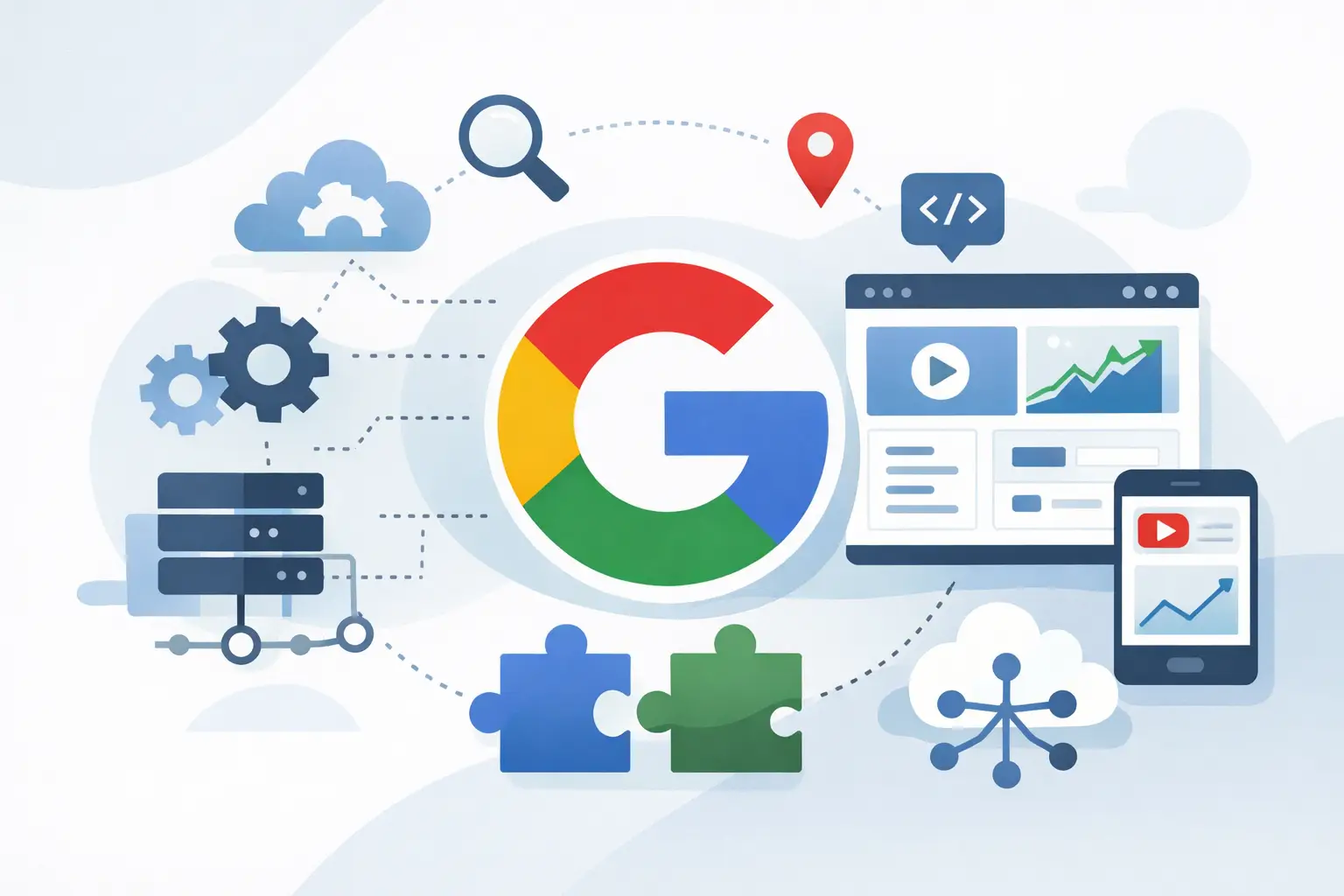
Google offers APIs for Maps, Calendar, Drive, Gmail, Sheets, Analytics, YouTube and more. Choosing an API first is tempting, but it can lead to a technically correct feature that does not solve the actual business problem.
Define what the user needs to do from beginning to end. A consultant may want prospects to book a meeting without back-and-forth emails. A field team may need addresses displayed on an internal job dashboard. A SaaS operator may want customers to export monthly figures to Google Sheets. Each workflow has different requirements for permissions, data storage, speed and failure handling.
It is also worth deciding who owns the data. If your application reads from one company-owned Google Calendar, the implementation is usually straightforward. If hundreds of customers connect their own calendars, your product needs account connection screens, consent handling, token storage, reconnection flows and support messaging when access is removed.
A good specification answers three practical questions: what starts the action, what data moves between systems, and what should happen if Google is unavailable or returns an error. That gives the build a clear shape before credentials are created.
Set up the Google Cloud project properly
Every production integration should have its own Google Cloud project, with billing, enabled APIs and credentials managed deliberately. Avoid building against a personal test project and treating it as a permanent home. Ownership becomes unclear, access is harder to control and handover is unnecessarily awkward.
Enable only the services the application needs. This keeps the project easier to audit and reduces the chance of an old experiment becoming an overlooked dependency. Set a sensible budget alert where a billable service is involved, especially Maps Platform products, where high traffic or an inefficient implementation can create avoidable cost.
Use separate projects or at least separate credentials for development, staging and production. This prevents test data, local callback addresses and experimental changes from interfering with live users. It also makes fault-finding far easier when a feature behaves differently after deployment.
Choose the right authentication method
The credential type is one of the most consequential choices in a Google API integration.
An API key is suitable for certain public, tightly restricted requests, such as displaying maps or accessing public data. It is not a secret user identity. Restrict it by website referrer, IP address, API and, where possible, application. A key placed in front-end code without restrictions should be treated as exposed.
OAuth 2.0 is required when an application needs permission to act on behalf of a user, such as reading their Calendar, uploading to their Drive or accessing private YouTube information. Users are shown a Google consent screen and approve defined scopes. Request the smallest set of scopes that genuinely supports the feature. Broad permissions can damage trust and may trigger additional verification requirements.
A service account is useful for server-to-server work where a person does not need to approve each action. For example, a back-office tool may write reports to a shared Google Sheet owned by the business. It is not a shortcut for accessing every employee's private Google data. Permissions still need to be granted correctly, and some Workspace setups require administrator configuration.
Build the integration around your application
Keep sensitive work on the server. OAuth client secrets, refresh tokens and privileged API calls do not belong in browser code or a browser extension bundle. The front end should ask your own backend to perform approved actions, while the backend validates the user, calls Google and returns only the data the interface needs.
For OAuth, use a well-defined connection flow. Generate and validate a state value to protect against request forgery, use approved redirect URIs, and store refresh tokens encrypted at rest. Refresh tokens are what allow a connection to continue after a user closes their browser. They also need lifecycle management: users may revoke access, change passwords, leave an organisation or remove an app from their Google account.
Do not assume that an access token will always be valid. Build clear handling for expired credentials and revoked consent. In a customer-facing product, that usually means showing a simple reconnect action with an explanation of what needs attention. Silent failure is frustrating for users and expensive for support.
Data design matters just as much. Store the external record ID, the last successful sync time and enough status information to diagnose a failure. Do not copy entire Google datasets into your database merely because the API makes it possible. Retain only what the product needs, document why it is retained and consider how the data will be deleted if a customer disconnects.
Design for quotas, speed and imperfect data
Google APIs apply quotas and rate limits. A feature that works perfectly for one account can hit limits once it is used by a busy team or embedded across a high-traffic marketing site. Check the quota model before committing to a user experience that depends on frequent calls.
Cache data where it makes sense. A business address, a map result or a report that changes once a day does not need to be fetched on every page load. For a calendar booking feature, freshness matters more, so a shorter cache period or a live availability check may be justified. The right balance depends on the cost of stale information versus the cost and latency of repeated requests.
When a request fails due to temporary throttling or a server issue, retry carefully with exponential backoff. Do not retry every error indefinitely. A malformed request, missing permission or deleted resource needs a useful application response, not repeated traffic to the same endpoint.
Google data can also be inconsistent from an interface perspective. Addresses may not be formatted as expected. Calendar events can be all-day entries, recurring events or events in different time zones. Files can be renamed or moved. Build the interface around those realities rather than assuming every response will match a neat demo dataset.
Avoid the common shortcut: direct browser calls
Direct client-side calls can be appropriate for narrowly scoped public APIs, but they are often overused. They can expose credentials, make authorisation harder to control and leave business logic scattered across the interface.
A small server endpoint gives you a place to validate requests, apply rate limiting, cache results, log failures and change providers later if needed. For a browser extension, it also helps separate the extension interface from the integration layer, making permission reviews and future updates more manageable.
Test the failure paths before launch
A production-ready integration needs more than a successful demo. Test with a new user, an existing connected user, a user who declines consent and a user who revokes access after connecting. Test empty calendars, missing files, delayed responses, quota errors and invalid redirect URLs.
Check the consent screen copy too. People are more likely to approve access when the application clearly explains why it needs it. If the app asks to read calendars, explain the scheduling feature it powers. If it writes to Sheets, explain what is created and where. Plain language improves trust and reduces abandoned connections.
Logging should record enough context to investigate a problem without collecting unnecessary personal data. Capture request IDs, API response codes, connection status and the relevant internal account ID. Avoid logging tokens, full document contents or sensitive customer information. A useful error trail lets you fix a real issue without turning operational logs into another data risk.
Before go-live, verify the production domain, authorised redirect URLs, key restrictions, billing status and environment variables. These are unglamorous checks, but they prevent a surprising number of launch-day failures.
When a custom integration is worth it
Automation platforms can be a sensible choice for simple, low-volume workflows. They are quick to configure and may be enough for sending a form submission to a spreadsheet or creating a basic calendar entry. A custom build becomes more valuable when the workflow needs a polished user experience, account-specific permissions, reliable sync behaviour, deeper validation or control over ongoing costs.
That is particularly true for SaaS products and internal tools. The integration is part of the product experience, so it should feel considered rather than bolted on. A well-built Google connection can remove repetitive admin, keep records accurate and give users one less platform to manage.
The best Google integrations are rarely the flashiest part of a web app. They quietly make booking, reporting, mapping or document workflows easier, while keeping permissions, performance and support under control. Build around the real task your users need completed, and the technical choices become much clearer.